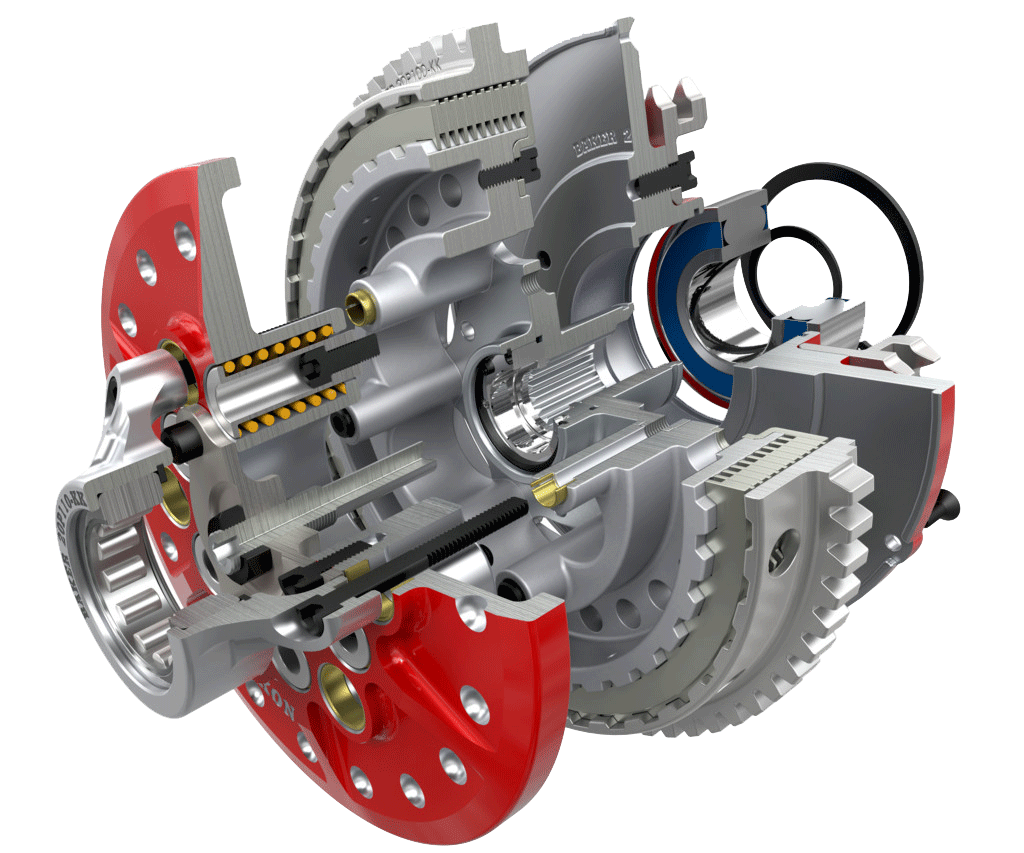
3D Modeling with SolidWorks. Lean Design and Drafting Essentials
Language : Hindi
Module :11
Classes : 40
Time : 50Hrs
Course Description
Unlock the power of 3D design with our comprehensive SolidWorks course. Learn the essentials of CAD modeling, from basic sketches to advanced assemblies. Ideal for beginners and professionals looking to enhance their skills, this course covers key features, practical applications, and tips for efficient design. By the end of the course, you’ll be equipped to create precise and complex models with confidence.
Course Highlights
Instructor Online Training
Project Based Learning
Industrial Experienced Trainer
Mobile App Access
Course Completion Certificate
Lifetime e-Learning Access 24×7
After Training Support
Case Study
What You’ll Lean in this Course
Able to work on the Sketch Workbench to create initial 2D Sketches for 3D Modeling.
Able to use some Advance Sketching Tools for making your work simple.
Confidently able to work on Part Modelling Workbench to create Basics & Complex parts.
Learn to apply different Materials, Appearances & Textures to evaluate important physical properties like weight, density, inertia & centre of mass.
Confidently able to create Assemblies by learning concepts like Standard, Advance & Mechanical Mates.
Able to create Motion Simulations, Static & Thermal Analysis.
Confidently able to work on Sheet Metal Workbench to Create Sheet Metal Parts.
Confidently able to work on Drawing Workbench for making drawings of both parts and assembly.
Course Content Module:
Module 1: Introduction
User Interface Overview
Navigation Tools
Views & Display Style
Customizing the User Interface
Setting Dimensions
Saving, Renaming and Managing Files
Module 2: Drawing Sketches.
Sketch Basics
Making Lines
Creating Circle, Arc & Rectangle
Sketch Relations
Adding and Modifying the dimensions
Creating Polygon, Slot & Point
Working with Splines
Drawing Ellipse, Parabola & other Conics
Adding Texts
Sketch Filet & Chamfer
Trim & Extend Entities
Sketch Offset
Creating Linear & Circular Sketch Patterns
Mirror, Move, Rotate, Scale & Stretch
Module 3: Part Modeling
Creating Reference Features
Creating the Extrude Features Part 01
Creating the Extrude Features Part 02
Creating the Revolve Features
Creating Boundary Feature
Creating the Sweep Features Part 01
Creating the Sweep Features Part 02
Creating the Loft Features Part 01
Creating the Loft Features Part 02
Creating Thicken Feature
Extrude Cut
Revolve Cut
Boundary Cut
Sweep Cut
Loft Cut
Thicken Cut
Remove Material with Surface
Multi Body Concepts
Creating Curves Part 01
Creating Curves Part 02
Module 4: Advance Features
Creating Filet
Inserting Hole Type
Advanced Hole
Creating Thread
Stud Wizard
Creating Chamfer
Creating Ribs
Module 5: 3D Patterns Creation
Creating Pattern
Creating Circular Pattern
Creating Curve Pattern
Creating Mirror
Sketch Driven Pattern
Table Driven Pattern
Creating Fill Pattern
Variable Pattern
Module 6: Assembly Modelling Tools
Assembly Modelling Tools
Applying Mates
Creating Coincident Mates
Creating Parallel Mates
Creating Perpendicular Mates
Creating Distance Mates
Angle Mate
Creating Tangent Mates
Creating Lock Mate
Module 7: Advance and Mechanical Mates in Assembly
Creating Rack and Pinion Mate
Advance Mates
Symmetric Mates
Creating the width Mate
Creating Path Mate
Creating Linear and Coupler Mate
Creating Limit Mates
Mechanical Mates
Creating Slot Mate
Creating Hinge Mate
Creating Gear Mate
Creating Screw Mate
Universal Joints
Module 8: Advance Features in Assembly Modeling
Working With Sub-Assemblies
Assembly Approaches
Top-Down Assembly Approaches Part 01
Top-Down Assembly Approaches Part 02
Creating Linear Component Pattern
Creating Circular Component Pattern
Using Toolbox
Downloading and Managing Premade Parts Part 01
Downloading and Managing Premade Parts Part 02
Module 9: Generating Drawing Views
Generating Drawing Views
Generating Model Views
Generating Standard and Projected Views
Creating Auxiliary Views
Creating Detailed Views
Creating Crop Views
Creating Broken-Out Section View
Creating Break View
Creating Section and Aligned Section Views
Creating Alternate Position View
Creating Empty Views
Working with Assembly Specific Views
Drawing Properties
Manipulating Views
Module 10: Sheet Metal.
Sheet metal design
Bend Allowance and Bend Deduction
K-Factor
Creating Base Flange
Sheet Metal Tab
Creating Edge Flange
Creating Mitre Flange
Hem and Jog Features
Creating Corners Features
Creating RIP Features
Creating Sketch Bend
Fold/Unfold
Mounting Boss
Creating Vent
Snap Hook
Lip/Groove
Snap Hook Groove
Module 11: SolidWorks Rendering
SolidWorks Rendering
Preparing Model
Adding Lightning
Modifying Texture Properties
Working with Glass
Using Option Panel
Adding the Named Views
Positioning the Camera
Adding Decal
Image Output
User Interface Overview
Navigation Tools
Views & Display Style
Customizing the User Interface
Setting Dimensions
Saving, Renaming and Managing Files
Sketch Basics
Making Lines
Creating Circle, Arc & Rectangle
Sketch Relations
Adding and Modifying the dimensions
Creating Polygon, Slot & Point
Working with Splines
Drawing Ellipse, Parabola & other Conics
Adding Texts
Sketch Filet & Chamfer
Trim & Extend Entities
Sketch Offset
Creating Linear & Circular Sketch Patterns
Mirror, Move, Rotate, Scale & Stretch
Creating Reference Features
Creating the Extrude Features Part 01
Creating the Extrude Features Part 02
Creating the Revolve Features
Creating Boundary Feature
Creating the Sweep Features Part 01
Creating the Sweep Features Part 02
Creating the Loft Features Part 01
Creating the Loft Features Part 02
Creating Thicken Feature
Extrude Cut
Revolve Cut
Boundary Cut
Sweep Cut
Loft Cut
Thicken Cut
Remove Material with Surface
Multi Body Concepts
Creating Curves Part 01
Creating Curves Part 02
Creating Filet
Inserting Hole Type
Advanced Hole
Creating Thread
Stud Wizard
Creating Chamfer
Creating Ribs
Creating Pattern
Creating Circular Pattern
Creating Curve Pattern
Creating Mirror
Sketch Driven Pattern
Table Driven Pattern
Creating Fill Pattern
Variable Pattern
Assembly Modelling Tools
Applying Mates
Creating Coincident Mates
Creating Parallel Mates
Creating Perpendicular Mates
Creating Distance Mates
Angle Mate
Creating Tangent Mates
Creating Lock Mate
Creating Rack and Pinion Mate
Advance Mates
Symmetric Mates
Creating the width Mate
Creating Path Mate
Creating Linear and Coupler Mate
Creating Limit Mates
Mechanical Mates
Creating Slot Mate
Creating Hinge Mate
Creating Gear Mate
Creating Screw Mate
Universal Joints
Working With Sub-Assemblies
Assembly Approaches
Top-Down Assembly Approaches Part 01
Top-Down Assembly Approaches Part 02
Creating Linear Component Pattern
Creating Circular Component Pattern
Using Toolbox
Downloading and Managing Premade Parts Part 01
Downloading and Managing Premade Parts Part 02
Generating Drawing Views
Generating Model Views
Generating Standard and Projected Views
Creating Auxiliary Views
Creating Detailed Views
Creating Crop Views
Creating Broken-Out Section View
Creating Break View
Creating Section and Aligned Section Views
Creating Alternate Position View
Creating Empty Views
Working with Assembly Specific Views
Drawing Properties
Manipulating Views
Sheet metal design
Bend Allowance and Bend Deduction
K-Factor
Creating Base Flange
Sheet Metal Tab
Creating Edge Flange
Creating Mitre Flange
Hem and Jog Features
Creating Corners Features
Creating RIP Features
Creating Sketch Bend
Fold/Unfold
Mounting Boss
Creating Vent
Snap Hook
Lip/Groove
Snap Hook Groove
SolidWorks Rendering
Preparing Model
Adding Lightning
Modifying Texture Properties
Working with Glass
Using Option Panel
Adding the Named Views
Positioning the Camera
Adding Decal
Image Output
Basic Requirements for this course:
1. Solidworks software installed in to your computer / laptop.
2. Basic knowledge of computer.
Who can lean this course:
Individuals intending to take SOLIDWORKS Associate Certificate – CSWA.
Individuals intending to learn the basics of SOLIDWORKS.
Individuals wanting to get started with 3D modeling.
Individuals wanting to get a better job via SOLIDWORKS skills.
Individuals wanting to list SOLIDWORKS skills in their resume.
Designers, Engineers, Makers, and Hobbyist.
After completing the course, you can work as:
3D Modeler
Product Designer
Product Animator
CAD Engineer
SolidWorks Specialist
Freelancer
Instructor
Tariq Anwar
Create something awesome
4.0 Instructor Rating
50 Reviews
150 Students
5 Courses
I am Mechanical Engineer and working as CADD CAM Designer with 8 year experience.. I have working experience with wide range of Software
like CorelDraw, Autocad, Artcam, Vectric Aspire,Solid works, Creo parametric and etc. Last few years I’m working as instructor. I love share my knowledge with people who want to learn something useful and awesome